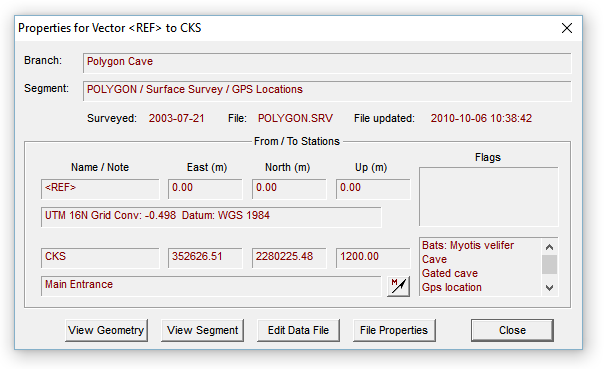
The Vector Properties window shows non-editable information for a compiled survey vector or #FIXed station. When editing a data file you can open it by selecting "Vector properties..." from the editor's right-click context menu while the cursor is positioned on the vector's definition. This assumes the data has already been compiled and is currently under review (Review dialog open). You can also open this window via the Traverse page's context menu while the vector's statistics line is highlighted. Finally, you can open it via the context menu of a displayed screen map as described under Displayed Maps.
The window displays data retrieved from the compiled database. The red-colored text in the sunken rectangles can be scrolled horizontally, if necessary, and copied to the clipboard via a right-click context menu. The Branch field contains the location of the vector in the project tree. This location is expressed as a path-like name ending in the data file's title. (In this example, the data file for Polygon Cave is attached immediately beneath the tree's root so there are no higher-level name components.) The Attributes field contains the segment names assigned to the vector. Beneath the listed coordinates of each endpoint station is a long text field containing any note you may have assigned. In this example, since the from station is the UTM coordinate system's reference, datum and zone information is displayed instead of a note.
A station's Flags list box contains an alphabetical listing of all of its assigned flags, whether or not they appear as symbols on the map. (At least one flag symbol must be present for a station to be highlighted.) A flag's priority and hidden/non-hidden status is not indicated in this list box. (See Flag and Marker Symbols.) The Vector Properties window shown above has information for a flagged station that also happens to be a #FIXed station.
To the right of a station's note field is a toolbar-like button for launching the geographical calculator. The calculator's edit boxes will be initialized to contain the station's coordinates and the geodetic datum will be set appropriately. The button will be disabled (grayed) if UTM-relative coordinates weren't generated by the compilation. (See Properties: Geographical Reference Page.) If the current review units are feet rather than meters, the UTM coordinates you see in the calculator will be the Vector Properties window's coordinates converted to meters.
Opening the geographical calculator will not close the Vector Properties window. Pressing any of the following buttons, however, will close it and make a different window active:
View Geometry - The vector, if it's part of a loop, is highlighted on the Traverse page of the review dialog. Certain statistics are shown on this page, such as suggested measurement corrections that would make the vector (and containing traverse) consistent with the containing loop system. This button is disabled if the vector is not contained in a loop.
View Segment - Jumps to the Segments page with the corresponding node in the tree highlighted.
Edit Data File - The file containing the vector's definition will be opened in the Walls editor, with the appropriate line highlighted.
File Properties - The project tree is expanded and the leaf corresponding to the vector's file is highlighted. Also, the file's Properties Dialog is invoked, the particular page opened being the last one that was active.