Integrated into Walls is a calculator that can be used as both a coordinate conversion tool and a predictor of magnetic declination. The latter capability is based on a mathematical model known as the International Geomagnetic Reference Field (IGRF), which currently supports dates in the range Jan 1, 1900 to Dec 31, 2019. For years 2020 and beyond, it will be necessary to download and install a new program release.
The calculator is invoked in two different ways. When you specify a geographical reference for a survey or branch of your project via the Geographical Reference property page, the calculator serves as a window for data entry. When used this way, the window must be closed (by your selecting Accept or Cancel) before any other program activity takes place. The other way it is invoked is as an independent calculator, where the window, which is not confined to the Walls desktop, can stay open as you edit surveys and compile or review data. The calculator can be accessed via a toolbar icon (an M-labeled north arrow) or by selecting File | Geographical calculator. In calculator mode, the Accept and Cancel buttons are replaced with a single Close button. Since all fields of the dialog are updated as you enter data, the calculator serves as a coordinate conversion tool. Any one of about 28 geodetic datums can be selected, allowing you to also convert between datums without changing the actual location.
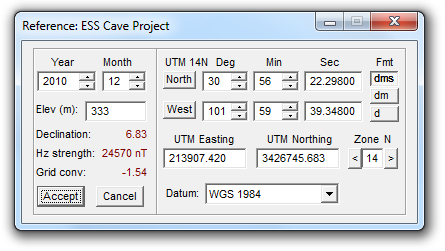
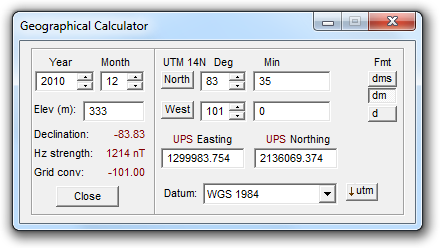
You can enter a latitude and longitude using any of three popular degree formats. Alternatively, you can enter Universal Polar Stereographic (UPS) or Universal Transverse Mercator (UTM) coordinates and UTM zone number. The UPS coordinate system is officially defined for latitudes equal to or above 84° N, or strictly below 80°. When the latitude is no more than 0.5° outside these polar regions, a button appears at the dialog's lower-right, allowing you to toggle between UTM and UPS. In the example below we've forced a location below 84° N to display as a set of UPS coordinates:
For locations within a half degree of the equator we can, in a similar fashion, toggle between north-zone and south-zone UTM representations.
Calculating Out-of-Zone Coordinates for a Location
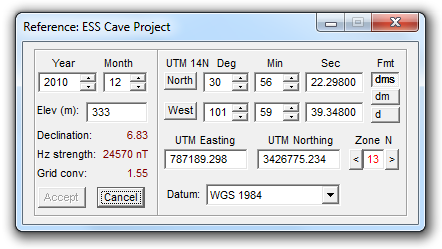
Editing the degree fields will cause the UTM coordinates and zone number to change accordingly. Likewise, editing the UTM easting, northing, and zone will change the degree fields. It's possible, however, to enter UTM coordinate values that map to a geographic location that's not strictly within the zone displayed in the edit box. (A zone's central meridian is at easting 500,000 while a zone's total width at the equator is 666,000 meters.) In this case, if the magnitude if the zone discrepancy is no more than one, the zone number will be displayed in red as shown below. Note that the true zone corresponding to the location's longitude (14N in this example) is always displayed upper-left of the degree settings.
If the zone discrepancy is greater than two, or if either UTM coordinate is too far out of range, the message "Invalid !" will appear in the dialog's lower right corner.
Since a Walls compilation can include surveys that cross a UTM zone boundary, it's sometimes useful to calculate, for a specified Lat/Long location, the equivalent "out-of-zone" coordinates corresponding to an adjacent zone. You can accomplish this by first entering the location either as degrees or as UTM coordinates with the correct zone specified. Next, hold down the CTRL key while clicking one of the buttons adjacent to the zone's edit box. Incrementing or decrementing the zone in this manner will only affect the displayed UTM coordinates and grid convergence, which will now specify the same location in reference to the new zone. This zone number will be colored red and will remain red while out-of-zone values are present. With the calculator in this state you cannot change the geographical reference of a Walls project branch. (The Accept button is disabled.) In a data file you can, however, define a UTM fixed point with these out-of-zone coordinates as long as the zone displayed in the edit box is the same as that of the data file's geographical reference. (Also see #FIX Directive.)
Transferring Coordinate Pairs via the Clipboard
Right-clicking the edit box for a UTM coordinate or either of the two rightmost (least significant) degree fields will open a pop-up menu with two special options: Copy coordinates and Paste coordinates. Selecting Copy coordinates will transfer a text string to the clipboard, the exact form depending on field type (UTM or degrees) and format setting (dms, dm, or d). The four possibilities for the location displayed in the above example are listed below, the last being the out-of-zone UTM:
30 56 22.29800 N 101 59 39.34800 W
30 56.371633 N 101 59.6558 W
30.9395272 -101.9942633
787189.298 3426775.234
The coordinates in each pair are separated by a tab character, which simplifies pasting the data into adjacent cells of an Microsoft Excel or Access table. The degree formats are also suitable for pasting directly into the search boxes of mapping programs, such as Google Earth and Google Maps. (For those programs you'll need to set the calculator's datum to either NAD83 or WGS84 before the copy operation.) These and similar formats, say with space or comma separators, can also be transferred to the calculator by selecting Paste coordinates. If the paste succeeds, the calculator's degree format automatically changes to reflect the input. Since UTM zone and datum are not part of a clipboard transfer, it's important that these be set beforehand in the calculator.
Declination Calculator
On the calculator windows's left side is a magnetic declination calculator. With it you can see what declination Walls will use during a data compilation when automatic computation of declinations is enabled. (See the Geographical Reference property page.) The computed declination, which is based on both survey date (as specified by #date directives) and the geographical reference position, will be added to all compass readings in the affected data files. In addition to date and horizontal position, the predictive model used by the calculator also accepts an elevation as input. Although an elevation field is provided for completeness sake, the computed declination will be practically the same for all reasonable land elevations. You can leave the elevation set to zero -- or simply use it as a descriptive field for your project's geographical reference.
Along with the declination angle, the calculator displays the estimated intensity, in nanoTesslas (nT), of the magnetic field's horizontal component. Compass readings can be especially unreliable when this intensity is less than about 5000 nT, which is often the case for locations above 70° N latitude. The National Geophysical Data Center's Geomagnetism FAQ states the following regarding compass behavior near the poles:
There are established zones around the north and south magnetic poles where compass behavior is deemed to be "erratic" and "unusable". These zones are defined where H (the horizontal intensity) is between 3000 nT - 6000 nT (erratic zone) and H is less than 3000 nT (unusable zone). Experts in the field claim that if you have a good compass and are careful, you can get decent results through the "erratic" zone. However, when H is small (H < 2000nT), the daily variation in D can easily be greater than 10 degrees. The Canadian Geological Survey has excellent information on their web site concerning magnetism and the north magnetic pole.
UTM/UPS Grid Convergence
The UTM or UPS grid convergence is also displayed in the left section. Grid north and convergence relate to true north in exactly the same way that magnetic north and declination relate to true north. In the diagram below you could replace G with M and Conv with Decl:
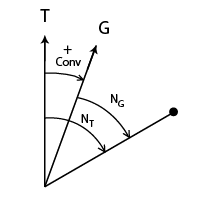
Here grid north is east of true north, in which case the convergence angle is a positive number by definition. You can see that the point's true north-relative direction (Nt) with respect to the diagram's origin is obtained by adding the convergence to the point's grid-relative direction: Nt = Ng + Conv.
In the Northern Hemisphere, UTM grid convergence is positive or negative depending on whether the UTM easting is greater than or less than 500,000 meters, respectively. Convergence is zero at 500,000 meters easting and increases in magnitude at a rate dependent on latitude for positions approaching the UTM zone's boundaries. (A zone's width is 6 degrees of longitude.) For example, using the calculator you can verify that at 30 degrees north latitude, the convergence ranges from -1.50 degrees at the zone's west boundary to 1.50 degrees at the zone's east boundary. In polar regions the UPS grid convergence is identical in magnitude to the longitude.