|
Top Previous Next |
|
This dialog is accessible via a tool bar button (shown above) whenever a page of the Review dialog is active. It's also reachable by clicking the Symbols... button on the Segments Page control panel.
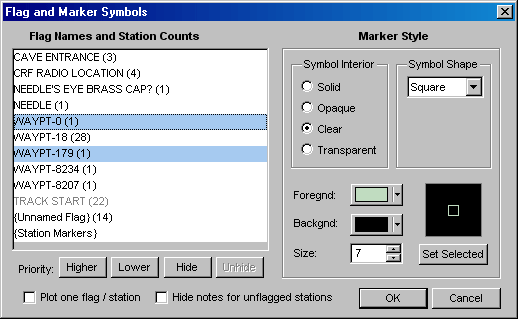
Flag Names and Station Counts The left side of the dialog is a list of all flag names that were encountered during processing of the reviewed project tree branch. The right side of the dialog displays the symbol attributes for the flag name that currently has focus (the last one selected if multiple names are highlighted), allowing them to be changed. In the above example, the flag named "WAYPT-0" has a green hollow square assigned. The names could have appeared on #Flag directives, which assign named flags to lists of stations, or on #Symbol directives, which assign default symbols to named flags. In parentheses to the right of each flag name is a count of the number of stations having that flag, whether or not the locations of those stations were actually established. The count could be zero; it's not necessary that a flag name on a #Symbol definition be assigned to any stations.
The last item in the list is "{Station Markers}", which represent all stations that don't have any assigned flags or whose flags are all "hidden" (see below). Also, if flags are disabled while station marks are enabled (via check boxes on the Map Page and/or Segment Page), then all stations will be marked with the symbol defined for "{Station Markers}". Using this dialog it's possible to change the size, shape, and color of both flag symbols and marker symbols and have those attributes preserved in the workfiles.
Another automatically assigned list item is "{Unnamed Flag}", which is present only if stations appear on a #Flag directive without a name parameter -- for example, "#FLAG A1 A2 A3". There's really no reason to have any of those, although Walls has always allowed them.
Priority - Since a given station can be assigned many different flags, it's useful to be able to control which flag symbols, if any, get drawn at that station's position. The order in which flag names are listed in this dialog determines the reverse order their corresponding symbols are drawn on the map. The symbols for the highest priority flag will be drawn after all symbols for the lower priority flags are drawn. Nowhere on the map will a lower-priority flag symbol obscure one of higher priority. (Instances of the same flag symbol can overlap each other.)
Higher and Lower - These buttons move the selected list item up and down, respectively, in the list sequence, thereby changing it's priority. The bottommost priority of {Station Markers}, however, cannot be changed. Like other flag attributes, the priorities you assign here are preserved across data compilations. In fact, changing the order of appearance of flag names in your data files (which could be difficult to control) will not affect the relative priority of preexisting flags. Of course, flags can be removed or added. If new flags are encountered during a compilation, they are placed above the preexisting flags at a higher range of priorities. You can then easily change them. Tip: Use the Up/Down arrow keys with the CTRL key to change priorities via the keyboard.
Hide / Unhide - These buttons will disable or enable the highlighted flags. (Multiple flags can be selected by using the CTRL and SHIFT keys along with the left mouse button.) If a flag is disabled, its symbol won't be drawn on the map, even though you can edit and save its attributes in the database. Stations with no flags or with only hidden flags can be excluded from coordinate listings and shapefile exports. If all flags assigned to a station have been disabled, then the station will be treated as an ordinary station and will be marked instead of flagged (assuming marking is turned on). Station markers cannot be disabled this way. The names of hidden flags are indicated by grayed text, such as "TRACK START" in the above example. Tip: Use the space bar to toggle the Hide/Unhide state while changing the selection with the Up/Down arrow keys.
Plot one flag / station - When a station is assigned multiple flags, it's likely that the highest priority flag symbol won't completely obscure the symbols for the lower priority flags underneath it. This could very well be the effect you desire, depending on how you design your symbols. If not, check this box to insure that only the highest priority, non-hidden flag assigned to a station is actually drawn. For metafile and SVG output, you may want to leave this box unchecked. Most drawing programs will let you "ungroup" the symbol objects at a station, perhaps separating them so they are all visible.
Hide Notes for Unflagged Stations - Check this box to hide the notes for stations that are either unflagged or have only hidden flags. This is useful in GIS applications, for example, where the notes are names of karst features belonging to specific categories. In the example illustrated above, only the names and flag symbols for bat caves will be shown in a displayed or exported map.
Marker Style The right half if this dialog presents the current symbol attributes assigned to the flag name that has focus in the left half. (This is the last flag selected if you've highlighted more than one.) The controls for selecting attributes should be self-explanatory. (For a description, see #Symbol Directive.) In any case, a dynamically updated preview of the symbol is displayed at the lower right, making it easy to experiment.
Set Selected - This button is enabled only when multiple flag names are selected. (Use the CTRL and SHIFT keys with the left mouse button to select more than one flag.) Its function is to assign the style attributes of the current flag to all selected flags. In the example illustrated above, clicking "Set Selected" would copy the attributes assigned to WAYPT-0 (green square) to WAYPT-179.
An attribute requiring special mention is Transparent. Only in exported SVG maps is this different from Clear. In an SVG map the flag will have a black border and a 50% opaque interior (allowing a marker, for example, to show through).
While the Symbol Interior, Symbol Shape, Foreground, and Size controls all pertain to the selected flag name, the Background control determines the background color for maps displayed on the screen. It's actually the same as the "Bkgnd" color control on the Segment Page's control panel. (For the time being, Walls supports just one color attribute per symbol as opposed separate outline and interior colors.) Similarly, if you change the attributes for "{Station Markers}", the Segment Page's "Mark" color control will be automatically updated.
You'll observe that when you change a symbol's size by direct numeric entry instead of scrolling, the preview image will be updated only after you move the focus off the size control -- for example, by pressing the tab key or by clicking anywhere outside the control. Also, a special value of 255 placed in this control indicates you want the symbol to have the default size as specified in the Map Format Options dialog.
The preview image shows exactly what will appear on a generated screen map. Printed versions of these symbols will no doubt look different -- probably better, in fact. The metafile versions will be handled in ways dependent on the importing program. Also, the Map Format Options dialog allows you to assign symbol outline line widths to each type of output separately. (The default line width is one pixel.) This alone can dramatically alter the appearance of all flag symbols drawn. Likewise, station markers have different line width settings.
This dialog is likely to evolve, depending on user feedback. A planned upgrade is to include another Symbol Shape selection, "TrueType", and to provide a button labeled "TT Symbol..." for opening a symbol selection dialog. Although the code is partly set up for this, there are currently other unfinished features of higher priority.
For more information, please review the #Flag and #Symbol Directives topic.
|