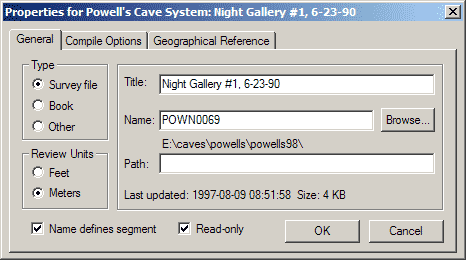
Type (Survey file, Book, or Other)
| • | Select Survey file if you are defining a survey data file (normally with extension SRV). When you compile a branch of the project tree, all attached survey files will be processed. A survey file is a leaf since it can't have child items. |
| • | Select Book if you are creating a new project branch instead of defining a leaf item (Survey file or Other). When you are editing an existing item, you can turn a leaf into a book, in which case the actual data file (if one exists) becomes unattached to the project. You can similarly turn a book into a leaf provided it doesn't already have child items. |
| • | Select Other to link any kind of file to the project as a leaf. Such items will always be skipped during normal compilation, whether or not they are attached (via connecting lines) to the book being compiled. They are always included, however, when a ZIP backup archive is created. Unlike data files, they can have long file names. Also, their base names don't have to be unique within the project. Instead of Review Units, which are relevant for books and data files, you specify Launch Options for items of this type (see below). |
Review Units (Feet or Meters)
Select the units to be displayed when this item (Book or Survey file) is being reviewed. This option has nothing to do with compilation; it affects the appearance of various dialogs in the next review session invoked for that item and determines the units for exported maps and coordinate listings. For book items this also establishes the default review units for new children. When the project window is active, the keyboard shortcut ctrl-F9/ctrl-F10 is available for turning feet units on/off for an entire tree branch. This operation ignores the attached/detached state of children.
Launch Options
|
For items of type Other there is no Review Units setting. You instead specify what happens when their tree icons are double-clicked. Selecting Properties will simply cause the Properties dialog to open. Selecting Open will cause the represented file to be opened in whichever application is associated with the file's extension. (File associations are a system setting that you can change.) Selecting Edit will cause the file to be opened in a Walls edit window.
|

Make sure you use the Edit option only for ordinary text files. For example, an SVG file with extension ".svg" is ordinary text, while a compressed SVG with extension ".svgz" is a binary file. Attempting to open a binary file in the Walls editor will most likely produce a warning, "Line 1 will be truncated due to having more than 255 characters", at which time you should cancel the open operation.
Name Defines Segment
Leave this box checked if during the next compilation of a parent branch you want this project tree node to have a corresponding node in the segment tree displayed in the Segment page of the Review dialog. The effect is to insert a name component in the segment attribute of all vectors in the compiled branch. This would make it easy, for example, to assign colors to specific caves and/or surveys in displayed or printed maps. It is also possible, of course, to define segments within the data files themselves. This box is normally checked by default. For more information, see #Segment Directive.
In the segment tree diagram, the node's label will be taken from the Title property, but for the segment name component itself Walls uses the 8-character Survey File Name or Workfile Base Name (see below). When this name field is left blank, a checked Define Segment box has no effect on compilation.
Note that a forced recompilation (Edit | Recompile item) of higher-level branch items may be required if you change the Define Segment status. This alone will not cause existing workfiles to be flagged obsolete.
Tip: If your project tree contains hundreds of small surveys, leaving this box checked for all items can create an unnecessarily large and complex segment hierarchy. You may have no need to distinguish between these surveys during the review process -- when assigning map colors, for example. To help you quickly change the segment hierarchy of a large project, the following keyboard shortcut is available when the project window is active: F9/F10 - Turn on/off the Define Segment property of all attached descendants of the selected item. This insures that the descendant books and surveys in the project tree will not automatically define nodes (branches) in the segment tree. All segments defined within the survey data files, however, will still be represented.
Read-Only
Check this box to write protect the file. This means you can't change the file's contents when it's open in an editor window, nor can other applications edit or delete the file until the read-only protection is removed. All other operations on the file, such as compilation and jumping to and from Review pages are allowed. When the file is open you'll know it's protected when "<LOCK>" appears in the window's title, or when an attempt to insert a character causes a "beep" alarm.
Note: The Read-only check box is missing from the property pages of Book items. To set or clear the read-only attributes of all file items in a project branch, right-click the branch in the project window. Then select Write protect files in branch from the context menu. A submenu offers two choices: either protect all of the branch's files, or else remove their protection so they can be edited.
Since file protection is implemented at the operating system level, the WPJ script file doesn't store the read-only attributes. Hence other file managers (like Windows Explorer) are free to change them. Fortunately the Backup Archive feature of Walls saves the read-only attributes in the ZIP files it creates. This helps protect the data from inadvertent editing when a transported project is intended mainly for viewing.
Title
This is the text used to label this item's node when it is visible in the project tree window (or segment tree window if Define Segment is checked). Typically it's the complete cave name or area name. There are no restrictions on what can be entered here, except that the field must be nonblank. Enter a long, descriptive title if you like. When selecting an existing survey data file via the "Browse" button, a blank field will be initialized with the file's first-line comment (if one exists).
Base Name (or File Name)
This edit field is labeled "File Name" if the project item happens to be a survey data file. Otherwise it is named "Base Name". If you enter anything here, it must be a short (8 characters or less) name that is unique for all items in the project. The program enforces this restriction by not allowing you to enter a name that's already assigned to a preexisting book or survey.
When a new survey is being attached to the project, the name you enter here is an actual file name excluding any path prefix. The file's base name (excluding extension) must have a length of eight characters or less -- which means that the survey data files used by Walls cannot have long filenames. If the 3-character extension is left off, the extension ".SRV" is assumed. Optionally this field can be left blank, in which case you will be prompted for a name whenever an operation requires one. A survey with either a blank file name or the name of a nonexistent file is depicted as an "empty page" icon in the project tree window. When a file doesn't already exist, one will be created in the directory determined by the Path property (see below) after a window for it is opened in the Walls editor and newly entered text is saved. An existing data file can be selected via the "Browse" button, in which case the Title field, if empty, is initialized with the file's first line of text provided it is prefixed with a semicolon.
Although earlier versions of Walls didn't allow this, you can now rename an existing data file by changing its File Name property. You will be prompted to confirm such a change and whether or not an existing file with the new name should be replaced.
Branch nodes (books) also require a unique name in this field if they are to be individually compiled. The program uses this name when constructing file names for the database it generates. If the node is a survey, as described above, Walls simply uses the base name of the survey data file. If the node is a book (or project root folder) you can specify any name you wish here as long as it's unique for the project and no longer than eight characters. Even if no database for this specific item will be created, you may still want to enter a name in this field. That's because the name is also used as a component in the hierarchical segment attribute assigned to vectors. (See Define Segment above.) If the name is blank, the project item will not be represented as a branch in the segment tree when a higher-level node is compiled -- even if "Define Segment" is enabled.
Path
The path property box should be left empty if the survey data files associated with this tree item will reside, by default, in the same disk directory as that specified for the parent tree item. The default path property of the project root folder is the directory containing the project script (WPJ file). Therefore, if you're content with having all of a project's data stored in one disk directory (as required by versions of Walls prior to B4), then just leave this box empty for all items in the project tree.
Displayed immediately above the path property box is the path prefix that will remain in effect if the box is left empty. If you enter a relative path in the box, the text you enter will be concatenated with the displayed prefix to establish a new path for the data file or branch. A relative path is any text that does not begin with either a backslash or a drive letter followed by a colon. If the tree item is a book node, the default path property of its children is in this way specified. If the item is a survey file or directory selected via the Browse button, then the Path box will be automatically filled in as appropriate -- that is, with a parent-relative path if one can be constructed, or with an absolute path if one cannot. I recommend that you use relative paths whenever possible to simplify management of the project.
For example, the General Page shown at the beginning of this section is for a leaf node, or survey data file. It has a relative path setting of "Surface", which in this case specifies that POW-NG4.SRV resides at location E:\caves\powells. Note that the path property pertains only to data files, not to workfiles. If this leaf node were compiled by itself, workfiles with base name "POW-NG4" would be created in the project's work directory, which is always a subdirectory directly beneath the project directory.
Alternatively, you can specify a completely new default path prefix, independent of the parent node, by entering an absolute path such as "E:\caves\powells\Surface Surveys". (Note that with either type of path, case doesn't matter, long file names are allowed, and the trailing backslash can be omitted.) This makes it possible to attach data files that don't reside in some subdirectory beneath the project directory, which in turn might facilitate the sharing of data between different projects. The only problem with absolute paths, which have to be "hard coded" in the WPJ file, is that they make it harder to archive entire projects and to transport them to new locations. If associated data files are somehow overlooked, or even just moved to a different drive or directory, the reopened project will display "empty page" icons for the missing files. This situation can usually be remedied, however, by changing the path property of just a few branch nodes.
Making changes to the path property of branches already populated with data is as simple as editing this field in the Properties dialog. The program will confirm that you want affected files moved, possibly causing new directories to be created automatically. Also, drag-and-drop operations, either on a single project tree or between different trees, can trigger various kinds of prompts when the path prefix inherited by a dragged branch changes. (As in Windows File manager, you can avoid unexpected prompts by dragging with the right mouse button.) The options you're given include moving, copying, and linking (keeping in place) files associated with the moved or copied branch. In some situations, "reasonable" choices are made behind the scenes without prompting, such as transforming an absolute path into a relative path whenever possible. Normally, you'll want files to either remain in place or to be moved, not copied. This is to avoid eventually winding up with identically named files with different content.
For more information on project tree reorganization, see Project Trees.