The #Segment directive, abbreviated by #Seg or #S, is used to assign named attributes, called segments, to survey vectors. By making such assignments we can obtain statistics for and dynamically assign map colors and styles to groups of vectors, regardless of where they appear in data files. Segments are operated on via the Segments page of the review dialog.
The key thing to notice first is that segment names are analogous to file pathnames in that they group vectors into a tree-like hierarchy, much the same way that files are grouped into folders on your computer's hard disk. The directive form is
#Segment <absolute or relative "pathname">
The abbreviations #S and #Seg are accepted. An example is
#S /Bat room/Lower level/March95
When the directive appears on a line by itself, it defines the segment for vectors that follow, up until the next #Segment directive on a line by itself. When the directive appears as the last item on a vector's data line, however, it applies to that vector alone and does not affect what segment is assigned to vectors above and below it. Currently, this is the only directive that can appear on the same line as vector data.
Like pathnames, segment names consist of components separated by slashes (either forward slashes or backslashes). When the segment name does not begin with a slash, the name is "relative" and does not replace but instead appends to the current segment name at that point in the file. In the Hackberry Cave illustration (see SRV Files - Overview) vector H2 H2B is actually in segment /Side shot/Lead/Dig. The maximum allowed length of a segment name component is 80 characters. The maximum allowed length of the expanded segment pathname is 255 characters. Note that unlike file pathnames, the case of characters (upper or lower) is significant.
Segments don't need to be predefined; they are automatically created when new names are specified. The dot notation of file pathnames can even be used. For example, "#S .." means "back up one level in the current segment hierarchy." Assignments like "#S ../../X" are allowed, but I suggest the use of absolute (slash prefixed) segment names whenever possible to avoid confusion.
Segments are optional and have no affect on the compilation of survey data. Their importance is that they allow you to assign map features (colors, line styles, labels, markers, etc) to as many parts of a network as you may want to distinguish between. For example, you can easily highlight the "Lead" vectors with a specific color, or exclude all "Side shot" vectors from the map. You can also view statistics (length totals, vertical ranges, etc.) and obtain vector/coordinate listings for different parts of the segment hierarchy. By detaching branches of the segment tree you can exclude vectors from the map, from listings, from statistical summaries, and from export operations. Operations on the segment tree (color assignments, attachment status, etc.) are among the things preserved in a database that is initialized (or updated) at the time of compilation. Recompilation of a project branch will normally preserve any assignments you've already made.
Segments can specify geography (caves, passage names, levels) and also vector "types" (surface, length excluded, underwater) -- it's your choice since Walls doesn't support any predefined vector types or segment names. For example, you might see the following tree diagram on the left side of the Segments page: (For a more up-to-date image showing this tree, see Segments page.)
|
The reason that Area Caves and Hackberry Cave appear in the tree diagram is that these project tree items happen to be part of a larger branch that was compiled -- namely, West Ft Hood Area. Also, the "define segment" option was turned on for these items (see Properties Dialog). It's usually convenient that the project tree itself define segment name prefixes for the survey files. This means that the higher levels of the segment hierarchy assigned to vectors are usually determined by the file hierarchy stored in the project script. When such prefixes are enabled, you cannot override them within the files themselves. The directive "#S /", for example, resets the segment name to whatever is assigned to the file by the project script.
|
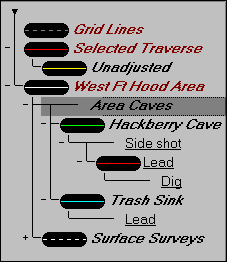
As you can see above, attribute names defined within survey data files are displayed in a distinct user-chosen font (underlined in this case). Attributes defined by the file hierarchy via "define segment" are represented in the diagram by project branch titles, displayed in another font. The actual attribute names, in this case, are the workfile and survey file base names. The complete segment name for vector H2 H2B is something like /AREA/HACK/Side shot/Lead/Dig, where "AREA" is the workfile base name for Area Caves and "HACK.SRV" is the name of the data file for Hackberry Cave.
Another thing to notice about the diagram is that the icon representing the assigned map features for Area Caves is missing. That's because the Area Caves assignments happen to be disabled -- the result of our selecting that tree item and clicking a button labeled "Inherit" on the Segments Page's control. This means that the default assignments for Area Caves vectors are inherited from its parent, West Ft Hood Area. In this case, however, those defaults (white lines, etc.) will not be used for either Hackberry Cave or Surface Surveys since those items have their own assignments, enabled as a result of our clicking that same button when it's labeled "Use Own.".
Notice that we are attempting to use one naming scheme for two basic types of attributes assignable to vectors: branch-type attributes that appear only once in the hierarchy (cave names, files, regions, etc.) and flag-type attributes that may be duplicated in many different parts of the hierarchy ("Surface", "Side shot", "Lead", etc.). The latter are analogous to the letter-designated shot "types" that are supported in other cave surveying programs.
The first question you may have about this approach concerns the assignment of map features for flag-type attributes. For example, how can we change the color of all Lead vectors without having to exhaustively search the segment tree, expanding branches, in an attempt to find all appearances of the Lead attribute? The solution is to use of the "Apply to All" button in the Segment Page's control panel. It's only necessary to find one occurrence of "Lead" in the segment tree, configure it with the desired map settings and click "Apply to All." This will copy those settings to all other tree nodes with the name "Lead." Those settings include the Inherit/Use Own and Attach/Detach states of that node, as well as the color, line style, label, and marker assignments. (Note that this operation wasn't done for Lead nodes in the above example.)
Some flag-type attributes may not be mutually exclusive. For example, you may want to use "P" for "don't display" and "L" for "length-exclude." Since a vector could have both attributes, it might be convenient to define a third attribute, say "PL" to allow more flexibility in distinguishing on a map the three different conditions.
The #Segment directive is easier to use than to read about. It can be helpful to load some sample data, make some assignments, compile, and display a screen map. Then switch to the Segments page of the review dialog. Changing settings on that page will dynamically update the map.