Use the menu option File | Create/Send Project ZIP file... to generate a ZIP archive containing all files associated with the active project. These will include the project script (WPJ file), the SRV data files, and all other files represented in the project tree, whether or not they are attached to the root by way of connecting lines. This simplifies both backing up the project and transferring it to other locations.
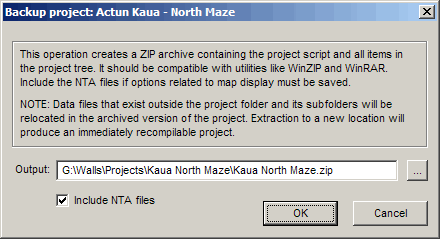
Output - The path and file name of the ZIP archive to be created. This is initialized to the WPJ file's pathname, but with the .WPJ extension replaced with .ZIP. You can edit this directly or use the browse button ("...") to navigate to an existing file or location. If the file you specify already exists, you will be asked to confirm replacement of the existing file.
Include NTA files - Check this box to also include in the archive any NTA files generated by compilations. These are the workfile components that store various graphics display assignments, including gradient definition files with extensions NTAC, NTAE, NTAD, and NTAS. See the second paragraph under Workfiles Created by Walls for another description of NTA files.
Select OK to proceed with archive creation. If successful, the function displays a summary of the contents and provides you with three alternatives:
1) Open the archive using WinZIP, WinRAR, or whatever utility you currently have associated with the .ZIP extension.
2) Launch your mail program with a message initialized to contain the archive as an attachment.
3) Simply exit.
Important Note: The generated archive contains the original directories (folders) of included files provided they are descendants of the project directory that contains the WPJ file. Associated files located elsewhere will have ZIP file paths constructed as <drive letter>$ \<path name>, where <drive letter>:\<path name> is the item's full path prior to being archived. In the archive, all files are stored within or beneath the archive's root (which contains the WPJ file) and if necessary the WPJ file is modified to reflect this. Therefore, when you extract the archive to a new location, the project should successfully compile.
The read-only attributes of all files in the project are preserved in the archive. When the ZIP is extracted, files that were originally protected from editing will continue to be protected (unless your ZIP utility discards the attributes). For details on write protection, see the Read-only section in the Properties: General Page topic.
Walls provides no backup restore function since it's very likely your system's ZIP utility can do a good job of this while offering many options. You may find it convenient to attach the archive to the project tree as an item of type Other. If you do this and also set the launch option to Open, double-clicking the item's tree icon should open the archive inside your ZIP utility. Attaching the archive won't present a problem when you again generate a backup. That is, the new archive won't contain an old copy of itself unless you change its name.
Note that this function offers no way to exclude specific portions of the project; all files represented in the tree are stored in the archive (with the exception mentioned above). The easiest way to exclude certain files -- perhaps an image file too big for an email attachment -- is to have the function launch your ZIP utility. Then simply delete the unwanted files.
The Walls backup function doesn't require that a separate ZIP utility be installed on your system. The compression code is contained entirely in a module (wallzip.dll) that's loaded whenever the function is invoked.