 This dialog is a statistical summary of compiled data and is accessible via a toolbar button (shown above) whenever a page of the Review dialogs is active. It also can be invoked from the Segments Page, either by right-clicking an item in the segment tree diagram or by clicking the Details / Rpts... button when the item is highlighted.
When the segment tree item is a collapsed branch (plus sign on the left), then the information and controls in the dialog will pertain to the entire branch. (This the default tree state after a compilation.) Otherwise, just the vectors assigned to the selected node will be summarized. Unfortunately, it's a common mistake to forget to collapse a node and to bring up a summary of fewer vectors than was intended. It's also easy to forget that detached branches and unselected network components aren't included either.
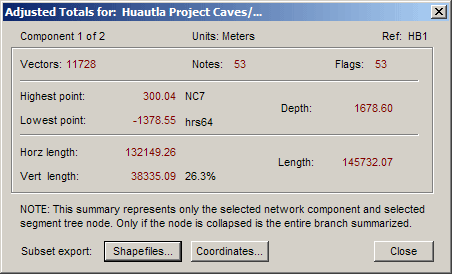
The numbers displayed are adjusted results. The flag and note totals are also shown; those totals can be non-zero even when there are no vectors to summarize. The statistics for vectors should be self-explanatory. There is a percentage shown beside the total vertical component length, which is simply this value times 100 divided by the total length. (You can consider this percentage a measure of the "verticalness" of a cave.)
Excluding Vectors from the Totals
Detached branches of the segment tree are not included in the statistical summary of collapsed higher-level nodes. For example, in the Segments page, if you wanted to exclude from length calculations all vectors with the "Side shot" segment attribute, you would first detach any tree branch named "Side shot". Next, you would click the Apply to All button, which detaches all "Side shot" branches. Finally, you would collapse the entire tree and click Reports... (or right-click the branch) to view the resulting statistics.
Shapefiles...
This button opens the GIS Export dialog, allowing you to create ESRI shapefiles, a native format for ArcView® GIS. For more information, see the topic Exporting ESRI Shapefiles under Import/Export of Other Data Formats.
Coordinates...
This button opens the Vector and Coordinate Reports dialog (also accessible via a tool bar icon). From there you can generate several types of coordinate listings.