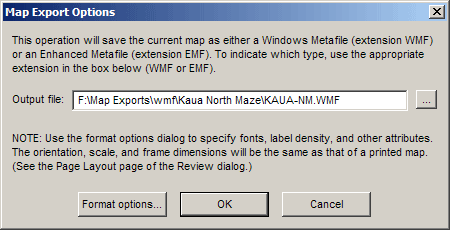
Walls supports the creation of two basic types of vector-based image files: metafiles (extensions WMF and EMF) and Scalable Vector Graphics files (extension SVG). The export dialogs are accessible via the File menu (File | Export map as ...) whenever a compiled project item is being reviewed. That is, whenever you are able to print (or print preview) a map, you can instead choose to export that same map as a metafile or SVG. Note that what we are really exporting is a 2D drawing in the form of editable text and path objects. Only with a VRML export do we save the survey as a 3D object.
While SVG is a new format with limited application support (see Roundtripping SVG Maps), most Windows-based illustration programs, such as CorelDraw and Adobe Illustrator, can correctly import the WMF files produced by Walls. So can image conversion utilities that attempt to convert any one format to a variety of other formats, such as DXF, CGM, CDX, CDR, and EPS. Only a few of these programs even attempt to read the theoretically more versatile "enhanced metafiles" (extension EMF), the basic problem being that the EMF format tries to encompass the entire Graphics Device Interface (GDI) of the Windows operating system (Win32). Applications have a hard enough time handling, in a uniform way, the much simpler 16-bit WMF format.
Actually, two varieties of WMF exist: the official, Microsoft-sanctioned WMF, which is almost useless for image interchange, and the WMF that most programs expect and which Walls produces. The latter variety has an "Aldus placeable header" which relays to the importing program the image's resolution and true rectangle dimensions. (Microsoft's solution to WMF deficiencies, of course, is EMF.)
You'll notice that Walls maintains a separate set of format options (see Map Options Dialog) for exported maps. One reason for this is that many otherwise excellent drawing programs have less than perfect import routines (or filters). Ideally, printed output from Walls and the drawing program should closely match when map options for printer and export are identical. Xara X, for example, fails to meet this criterion in a number of typical ways. While not supporting EMF at all, it reduces by one third the point size of all imported text in a WMF. It also uses the character cell's lower left corner instead of its upper left corner for positioning text, possibly causing labels to overrun the top edge of the frame. (If this happens, the image's vertical dimension is rescaled without warning!) You can often cancel the effects of these kinds of quirks by adjusting various settings in Walls. For example, if you were targeting Xara X and wanted 8-point text for labels, you would select a 12-point label font for exported maps. Also, to force Xara X to correctly position the text, you would change the y-offset for labels from 0, its usual value, to 8, the resulting text height.
Due to integer overflow problems, Illustrator 8 produces garbage when importing large WMF documents, such as ones with 50-inch wide frames. (Thanks to Bob Osburn for catching this.) Evidently, this has been fixed beginning with Illustrator 9.
Other problems might require you to forego the use of some features. I found that some programs have difficulty with dashed or dotted line styles. Xara X, without explanation, simply refuses to import the file. Errors in scaling are also surprisingly common. Hijaak Pro v4 brings in the entire WMF image at only half its correct size. It's a nuisance to have to resize an image (or its contained objects) after an import, but a decent result should still obtainable after a little tweaking. The fact that rescaling causes no loss of quality is one of the main advantages of a metafile import as opposed to a bitmap image import.
Another format option you should be aware of is station label spacing -- see Labels and Notes. While it's possible to specify a large frame (say 5 feet wide) and a tiny font, so that label overlap is unlikely, you might still want to avoid labeling every station. Otherwise, the large number of text objects could exceed the capacity of the importing program. (This might depend on how much memory your computer has.) The solution, in this case, is to not use overlap avoidance, or proximity, as the only criterion for labeling stations (Gap>0, Inc=1), but to use a sequencing criterion as well -- perhaps even exclusively. For example, Gap=0 and Inc=5 would cause every 5th station in the traverse-oriented plotting sequence to be unconditionally labeled. If necessary, overlapping labels can be repositioned or deleted in the target program.
Once you import a metafile into a drawing program, perhaps as a "layer" in an existing document, you may want to "ungroup" the resulting objects. This way, the frame, grid, vectors, markers, flags, labels, and notes can be individually edited or repositioned. (That's another big advantage of a metafile import.) A common requirement is to place different classes of objects into different layers -- for example, labels and markers into layer #1, and notes, flags, and lines into layer #2. Depending on the drawing program, the easiest way to do this may be to have Walls create separate metafiles for import into specific layers of the same document.