 Built into Walls is the ability to create a Virtual Reality Modeling Language (VRML v1.0) file from a selected portion of a compiled database. To open the VRML export dialog, select Export 3D Model (VRML) on the File menu or, more simply, click the "WRL" tool bar icon (shown here).
Also, the 3D button labeled "3D" will launch Walls3D with the VRML file previously exported for the project (if it exists). If multiple files with extension WRL exist in the project folder (or a folder you've chosen for storing all VRML files), you'll be presented a date-sorted list of file names from which to choose.
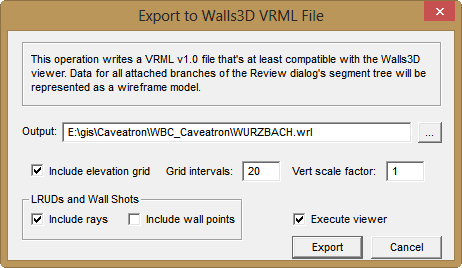
The export operation will create a text file with extension WRL that should be accepted by most VRML viewers or browsers. Walls3D, a simple VRML viewer based on OpenGL, is part of the Walls distribution. Alternatively you can set up Walls to use a different viewer if you can find one that's compatible with VRML v1.0. One that's evidently compatible is the open source viewer, View3DScene. (Last I checked, the browser plug-in, Cortona, is not fully compatible in that the assigned colors are ignored.)
All vectors in attached branches of the segment tree will be included in the exported data while recognizing the assigned colors. Vectors with the "No lines" line style, however, won't be visible. Those that are visible will have a 1-pixel thickness in Walls3D. The background color selected in the Segments page's right panel is also recognized.
Update: A recent enhancement of the export function is the option to include LRUD and wall shot dimension lines (rays) and/or their endpoints (wall points). They will appear even if their adjacent vectors have been assigned the "No lines" style. The color of the rays will be that assigned to the Passage Outlines node of the segment tree. The color of the wall points will be that assigned to the Passage Floors. Although the size of the wall point markers isn't specifiable in the VRML format, a particular VRML viewer might have settings affecting a point's appearance. For example, View3DScene, has settings to control both width in pixels and degree of anti-aliasing for both points and lines. In Walls3D the point size is fixed at 2 x 2 pixels and anti-aliasing is always on whenever it's supported by the graphics driver on your system.
The Output edit box is initialized with a path and file name constructed from the project branch being reviewed. Most likely, you'll accept the default pathname; however, since the default file name is based on the workfile base name for the compiled project tree branch, you may need to override this name if you want to create multiple files for the same portion of your project.
Note that the export dialog also allows you to specify the vertical scale factor and the type of reference grid.
Select the menu item Options | 3D file viewer... to configure Walls so that it automatically executes the viewer of your choice after an export operation. You can also execute the configured viewer via the File | Launch 3D Viewer menu option. In this case, the viewer's starting folder will be the folder you've specified for storing exported VRML files (the current project directory by default). If the folder contains a single file with extension WRL, the viewer will display it immediately. If there are multiple such files, you're prompted to pick from a date-sorted list.
The WRL file contains adjusted vectors floating above (or within) a reference grid. For now it's just a simple wire-frame model that you can manipulate in perspective view. The file's format is practically self-explanatory.