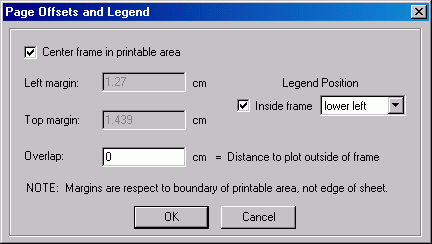
This dialog is accessible from the Page Layout dialog. Except for positioning the legend in metafiles, it applies only to maps sent to the printer. Like frame sizes, these settings are stored in the workfiles and are maintained separately for plans and profiles.
By default, the view frame will be exactly centered in the printable area, which is not necessarily the center of the sheet depending on the printer model. Unchecking Center frame in printable area will let you reposition the top-left corner of the map frame on the rectangle defining the page's printable area (visible on the Page Layout grid). When this box is checked, as above, the grayed numbers show the offsets (or margins) required to center the frame in the area defined by the current printer settings.
You can also specify an Overlap, a distance (in page units) that survey lines will be drawn outside the frame border. This might facilitate taping together adjacent pages when frame outlines and/or grid lines are not sufficient for that purpose.
Legend Position
Finally, you can choose which corner of the frame to print the legend text and whether or not it should be inside the frame, possibly obscuring plotted data. A "no legend" option is also available. The default setting is outside the frame at the lower left corner. The font used for the text is a general preference in the Map Format Options dialog (labeled "Frame..." in the Fonts section). It's likely that future releases of Walls will offer more legend-related options.
With metafiles, the only relevant setting in this dialog is the quadrant selected for the legend (if you choose to display one). If one is drawn, it will be inside the frame regardless of the "Inside frame" setting.