The direct download of GPS receiver data is currently restricted to the popular consumer models made by Garmin. Although there are differences between them, Garmins are able to describe their capabilities when sent special commands. This enables GPS software, including Walls, to account for various limitations and to work at least on some level. For example, the GPS V stores altitudes with track points while the GPS III doesn't. Unfortunately, while there exists a widely supported GPS interface (NMEA) that's suitable for some purposes, we must use the device manufacturer's proprietary interface to access stored track logs. The ability to convert track logs to traverses is useful for creating karst feature maps showing roads and trails. Also, processing points in a track log taken at one location is a good way to increase the accuracy of a position estimate and to determine what kind of weight to give it when it's combined with other data.
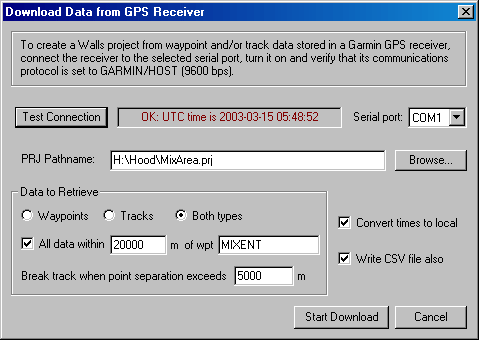
To download tracks and/or waypoints stored in a Garmin GPS receiver, select Download GPS Data from the File menu. (Downloading of routes, another GPS data type, is not supported.) The dialog box shown here will open:
It's not necessary that a project already be open in Walls since the download operation will create a ready-to-compile WPJ file and one or more attached data files. The data files, one for each represented UTM zone, will have individually assigned geographical references using the WGS84 datum. If you specify a restricted region of interest for retrieved data, the reference's location will be that of the named waypoint at the region's center. Otherwise, the reference's location will be that of the first recorded waypoint or track point. The project root folder will be assigned the same geographical reference as that of the first (topmost) data file. Also, only the first data file will be attached to the root with a connecting line. Therefore, compiling either the root or the first tree item will process the first zone's data. The data files representing additional zones will be detached from the root. They have to be compiled individually since the program currently doesn't support compilations spanning multiple UTM zones.
If you wish, you can drag any of those data files to another project window -- an operation that preserves the properties stored in the original WPJ file, including the references. The parent branch in the destination project can have a different geodetic datum (such as NAD27), in which case Walls will perform a datum conversion when the parent is compiled.
Dialog Settings and Controls
Test Connection - You should click this button after connecting and turning on the receiver, but before starting the download. This is to verify that the device is successfully communicating at 9600 bps, the speed used by Garmin's default protocol, GARMIN or GARMIN/HOST. If all is well, the receiver's Coordinated Universal Time (UTC) will soon appear in a status box at the button's right (see above example).
Serial Port - The name of the RS-232 serial port you connected the receiver to - a choice between COM1 through COM6. The program remembers the last port you used.
WPJ Pathname - The location and name of the WPJ file that will be created and then opened. You can use the Browse button to select or create an appropriate folder. The data files will be written to the same folder and given names like MIXA-14R.SRV, MIXA-15S.SRV, etc., where the first four characters are taken from the WPJ file name and the last three characters specify the UTM zone. You are warned if this would entail overwriting existing files.
Data to Retrieve - You can download waypoints, track logs, or both data types. In the latter case, waypoints and tracks in a particular UTM zone are stored in the same SRV data file, waypoints first. Although it won't make the download faster, you can save to the project only those waypoints and track segments that lie within a specified horizontal distance of a named waypoint. In the above example, anything beyond 20 kilometers of waypoint MIXENT will be excluded from the project. If the All data within box is unchecked, every waypoint and/or track segment will be represented.
Here is how waypoints and tracks are represented in the file:
| • | Waypoints - All waypoints in the UTM zone appear as #FIXed stations with UTM coordinates. They are placed in a segment named "Waypoints." Elevations may be present or absent depending on the receiver model. The stations have names identical to the waypoint names (up to 8 characters) and also have name prefixes indicating the zone, such as WP-14R. The waypoint comment is saved as the station's note, usually a timestamp unless it was changed in the field. Garmin's name for the waypoint symbol is saved as the station's flag. |
| • | Depending on the GPS model, waypoint names can have a maximum length of anywhere from 6 to 15 characters. Since station names in Walls are limited to 8 characters in length (excluding prefix), a waypoint named "CAVE ENTRANCE" in a GPS V, for example, will appear in the project as "CAVE_:ENTRANCE". The zone-derived name prefix, in this case, is replaced with "CAVE_". Also, any space characters in the name are converted to underline characters. |
| • | Tracks - Each track log segment in the UTM zone is represented by a #FIXed station followed by a series of RECT vectors forming a traverse. The traverse is given a segment name, "Tracks/Log Name/yy-mm-dd", where Log Name is the name of the track log and yy-mm-dd is either the date when the segment's first track point was logged or else the date of download. The track points won't have timestamps if the track log was originally uploaded to the GPS from a file. Timestamps are also missing from "saved" track logs with names other than "ACTIVE LOG". Garmin's newer GPS models provide the option of creating a named track log from all or part of the active log, a process that discards "unnecessary" track points as well as timestamps. Also, the individual track segments are merged to form a single segment in the saved version. For this reason you'll want to retain as much data as possible in the active log before tracks are downloaded. Both the active log and all saved logs are included in the download. |
| • | Each station in the traverse is given a prefixed name of the form "yy-mm-dd:hh.mm.ss" indicating the track point's time of logging when it's available. When a timestamp isn't available, yy-mm-dd is the download date and hh.mm.ss is replaced with a sequence number. The #FIXed station (first track point) is assigned a flag named "Track start." No notes are assigned. |
| • | Finally, each track segment will have a #Units directive containing an assignment of the form "rect=n grid=n", where n is the UTM grid convergence calculated for the track segment's starting point. The "grid=n" assignment overrides the convergence corresponding to the data file's geographical reference. The "rect=n" assignment specifies that the RECT vectors in the traverse are grid-relative rather true north-relative. |
Break Track when Point Separation Exceeds (5000 m) - When a track log is being recorded, Garmin receivers usually start a new track segment whenever a satellite lock is reacquired after being lost. This apparently doesn't happen with all models, however. Also, the segmentation is lost when the active track log is "saved". As a result, very long lines can appear on your map when they're not wanted. Here you can specify the maximum distance allowed between adjacent track points before the program removes the connecting line.
Convert Times to Local - Times stored in the receiver are based on Coordinated Universal Time (UTC). Enabling this option insures that all times written to data files, such as those in track point names, are first converted to local times as determined by settings in the computer where Walls is running. These times are not necessarily local to the places where GPS positions were recorded.
Write CSV File Also - Check this box to create a Comma Separated Value file (extension CSV) in addition to the data files described above. This is a simple text file with date of download, datum name, and position data beneath the following column labels: TYPE, NAME, ZONE, EASTING, NORTHING, ELEV, DATE, TIME, SYMBOL, and COMMENT. The CSV file is attached to the project tree's root as an item of type Other. Also, the Launch Option is set to Open, which means that double-clicking the item's icon will open the file in whatever program is associated with extension .CSV. You might want to use Microsoft Excel, for example, to compute the coordinate means and standard deviations of track points obtained with the receiver stationary. (If you have Excel, it's likely already associated with CSV files.)
Start Download - When this button is selected, the status window (to the right of "Test Connection") will begin serving as a progress indicator, showing download counts and totals for the waypoints followed by the track points. At any time you can Cancel the operation, such as when a connection to the device can't be established or when it's broken (intentionally or not). When that happens you're prompted to either save or discard what was successfully downloaded.