Importing a Walls SVG
The SVG export function of Walls creates an SVG file that can be opened directly by Adobe Illustrator provided the Adjustable option is selected. It can also be "placed" in an existing document. The SVG might be a raw export from Walls containing only survey data and a hierarchy of empty predefined groups (see SVG Layer Definitions), or a roundtripped SVG containing adjusted artwork along with new survey data. Here are some initial steps you might want to carry out after a direct SVG open:
| • | Under File | Document Setup... set the artboard width and height to be the same as that of the frame dimensions used for the SVG export in Walls. (Unfortunately there's nothing in the SVG itself that causes Illustrator to do this automatically although the document is properly scaled.) To see everything you must then zoom the document to fit the screen. |
| • | Next, open the Layer panel and check the expected w2d "layers" are present, but with Illustrator having interpreted them as a sequence of groups beneath a single layer named "Layer 1." At this point you can run a script that will convert to true sublayers the w2d groups you'll be normally working with. This takes only seconds. See Converting Groups to Layers in Illustrator. |
| • | Finally, if you want to bring in scanned images to trace, create a second outermost layer and assign it the template property. When you place images in this layer an SVG export won't include them. (Walls would ignore them anyway if they're not placed in a w2d layer.) Since it's not difficult to reload selected field book scans, I prefer not to involve them in the roundtripping process. |
Illustrator Settings for Creating an SVG for Walls
After drawing artwork in the layers described in SVG Layer Definitions, you should use the following dialog settings in Illustrator when creating a source SVG compatible with Walls. The next step will be to let Walls perform a merged export to produce a working or final SVG file compatible with Illustrator, Walls, and Walls2D.
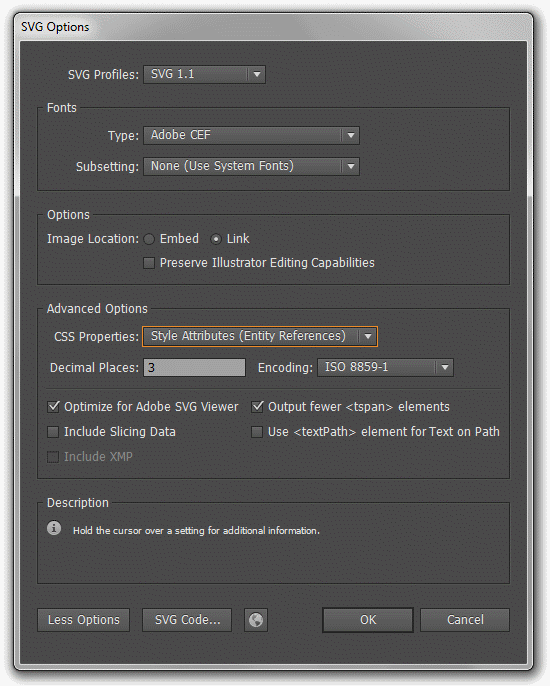
First, be sure to should use Illustrator's File | Save a Copy command (not Save As) to write an SVG for Walls while keeping a backed-up document in AI format in which you perform your edits. Only on relatively rare occasions will you need to replace this working AI document with a new one made by importing an SVG adjusted by Walls.
Below are some notes about the export options presented by Illustrator CS6. Other versions, including CC, present essentially the same options.
SVG Profiles - Leave this option set to either or SVG 1.1 or SVG 1.0. From what I've seen of Illustrator's SVGs so far, the choice between these two varieties affects only the Document Type Definition (DTD), a line of text near the top of the file. If called upon, the W3C Markup Validation Service will use the DTD to determine if the SVG is syntactically correct. In any case, when Walls uses the SVG in a merged export, it produces an SVG 1.0 file.
Fonts - In the box labeled Type choose Adobe CEF to achieve better quality rendering of small text. It's compatible with Walls2D and the Adobe SVG Viewer, but possibly not with other viewers
Image Location - Select Embed if you want a self-contained SVG file. This is irrelevant if you don't include images or special effects that require rasterization.
Preserve Illustrator Editing Capabilities - Leave this unchecked if you're targeting Walls. If checked, a large chunk of information would be added to the file that's usable only by Illustrator. This inflates the file's size and causes Illustrator to ignore the SVG content when it reads the unaltered file back in. Although the extra data shouldn't prevent Walls from using the file in a merged export operation, the exported SVG won't have this information.
CSS Properties - It's important that you select Style Attributes (Entity References). This creates a smaller file by using short names as abbreviations for element style attributes -- colors, type sizes, and so forth. Walls also does this when it exports an SVG file. This simplifies making style changes manually by editing the SVG as text.
Decimal Places - Page coordinates for graphics objects will be written with this many decimal places. Both Walls and Illustrator use point units, or 1/72 inches. You should leave decimals set at 2 or 3. Adobe 's documentation states that 3 is the "best choice for most files."
Encoding - Leave this set at ISO 8859-1, the same character encoding used by Walls.
Optimize for SVG Viewer - Leave this option checked.
Output Fewer TSPAN Elements - Be sure to check this box. It fixes a text export inefficiency that has occurred in older versions of Illustrator.
Include slicing data - Leave unchecked.
Use <textPath> element for Text on Path - Leave this box unchecked for now. Walls can read and adjust a file containing SVG <textPath> elements, but unfortunately Illustrator may not be able to import these elements correctly. This doesn't prevent you from decorating your maps with path-aligned text, however. (See the 7th item under Illustrator Limitations and Workarounds.)
When saving the document as SVG, you may want to follow a naming convention that simplifies the file's use by Walls. I normally include something like "_ai11" in the name to indicate what program produced the file. When the SVG export dialog is opened in Walls, the field containing the pathname of the merged file is initialized in one of two ways. If an SVG file is attached to the reviewed item (at any sublevel, but with an assigned type of Other), its pathname is used. Otherwise, the path is the project directory and the file name is the item's base name with suffix "_mrg.svg" appended. The default output file name, on the other hand, is constructed by appending "_w2d.svgz" to the base name. Of course you can change names while in the dialog.
Using Template Layers: It's likely you'll be using scanned drawings or fieldbook pages when working in Illustrator, in which case you should avoid placing those images in any of the layers Walls will recognize. Again, the best approach is to maintain a working document in AI format. All images are then placed in a layer that's never printed or exported, a layer with the template property. Then, whenever an SVG file is needed, use the "Save a Copy..." function to write a renamed SVG using the above settings. This will create a compact source SVG for use in merge operations. (I've noticed that a template layer must be an outermost layer, not a sublayer, for it to be excluded from the SVG.)
The basic rule to follow is to keep a backed-up working document in AI format and avoid having to read into Illustrator an SVG file that wasn't processed and rewritten by Walls. Also, instead of using an Illustrator-written SVG as a source SVG for routinely generating new views, it's better that you use an adjustable SVG created by Walls in a merged export. The SVGs in the sample projects were written by Walls, not Illustrator.
If you are having difficulty with SVG exchanges between Walls and Illustrator, see Illustrator Limitations and Workarounds.