The Walls built-in editor, with which you enter raw survey data, is like other popular text editors designed for Windows, except there are some special capabilities, like auto-sequencing. There are also project navigation functions that link the text you're positioned at to the compiled data under review (statistics tables or the preview map). The standard procedures for moving the insertion point, searching for and selecting text, performing cut-and-paste, and so forth, will not be detailed here. If you are not familiar with these conventions, you might check out the help file for WordPad, which comes with all recent versions of Windows.
With the editor you can open or create any ordinary text file. Such files can be linked to the project whether or not they contain compilable data. See Format of Survey Data to learn what Walls would consider valid survey data.
The most common way you'll invoke the text editor is by double-clicking a leaf (small page icon) in the project tree. This will open an edit window containing the text of the associated survey data file. On the Walls "desktop", you can have many text files displayed at once in their own edit windows. By selecting Window | New window while an existing edit window is active, you can even have multiple windows displaying parts of the same file. In this case, they will all be updated automatically as you use one to edit the text.
There are many other situations in the operation of Walls where an editor window is opened -- sometimes automatically, with text selected, or with the caret positioned at a place of interest.
An important editor option is the font used to display text, which can be either a proportional or fixed-space font. You specify the font by selecting the menu item Options | Fonts | Editor text. Other editor-related preferences are controlled by the following preferences dialog, which is accessed by selecting Options | Text editor | <file type>, where <file type> is either "Current file", "Survey files (SRV)", or "Other files":
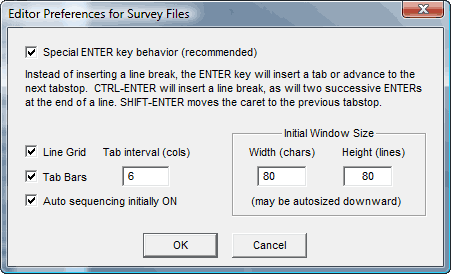
The horizontal grid lines, combined with the vertical lines defined by tab characters, improves the readability of transcribed field notes. Also, the special ENTER key behavior allows for fast typing of tab-separated columns of data -- particularly for numeric keypad users. The tab interval, which controls separation of the vertical grid lines, can be adjusted larger than the 6-column default if the lengths of your station names require it. The optimal setting also depends on the font chosen for the editor's text.
Auto-sequencing can be toggled on or off via a toolbar icon labeled A.. You'll normally have this feature turned on when entering sequences of survey shots. This usually makes entering the From and To station names unnecessary. There is also a toolbar button for reversing the positions of the From and To stations.
New: The Initial Window Size settings (with defaults shown above) actually determine the maximum window size of a newly opened editor window. If necessary the program will resize the window downward to display it in the Walls application window. Of course you can then move and resize the open window.
Important: If you right-click the mouse while an editor window is active, a context menu pops up that has a number of very useful functions. Which functions are enabled (not grayed out) depends on where the cursor was positioned. If it was positioned at a vector definition and the file is part of a compiled data set being reviewed, then you can "jump" to that vector's representation on a page of the Review dialog, or locate the vector on the preview map. A function that's always available is Properties, which opens the Properties dialog for the project tree item corresponding to the file you're editing. Be sure to try out these functions on the context menu, which are easy to overlook if you haven't made a habit of "right-clicking".