The treatment by Walls of unnamed groups in shp layers can on occasion lead to unexpected results. In Adobe Illustrator it's easy to create ledges and dome lines as brush-stroked paths. It also can be convenient to scatter sand and small rocks this way. The natural place for them is in the w2d Detail shp layer, but not in an unnamed group since we want those paths to be reshaped as necessary, just like the wall outlines. (See SVG Layer Definitions for a description of how layers are adjusted.) Unfortunately, when exporting to SVG Illustrator expands all brush-stroked paths to their individual components -- numerous tick marks, for example -- and nests them two levels deep within unnamed groups. That's all Walls sees and also what you'll have if you read the SVG immediately back into Illustrator. The invisible path is still there but its relationship with the tick marks is only that it's in the same unnamed group. This is the same result you'll get if you select a stroked path in Illustrator and choose Object | Expand Appearance. A consequence of this behavior is that when Walls needs to severely adjust artwork you might wind up with something like the before and after images below:
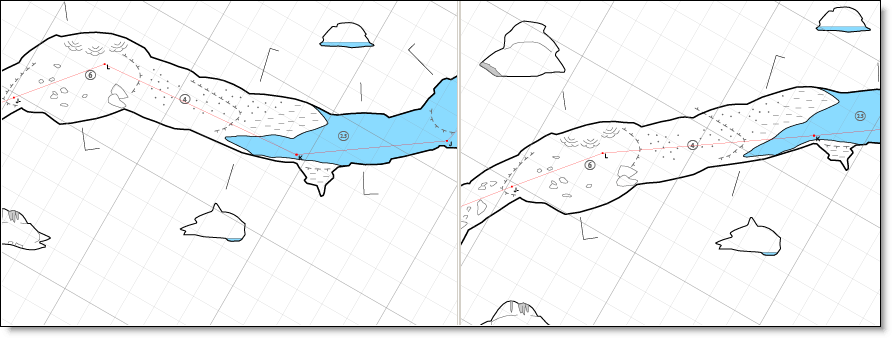
A 30-degree azimuth correction in shot K to L caused the dome line near the middle to extend outside the passage. That's due to its being enclosed in an unnamed group in the w2d Detail shp layer. We could have prevented this from happening by performing an expand appearance on any brush-stroked paths before the export, at which time we would also delete the empty path and ungroup the tick marks (or name the enclosing group). Although it's not shown here, that approach worked fine in this example, with the individually adjusted tick marks being nicely aligned while staying inside the passage. Another approach, probably safer and just as easy, is to repair such messed up paths by redrawing them in Illustrator after any round trip in which they happen to appear. Hopefully such cases will be rare and will need to be fixed just one time. (A possibly cleaner solution is suggested below.) The SVG format as produced by Illustrator just can't represent brushes and brushed paths efficiently like it can symbols.
This example also illustrates what can happen to a set of cross section lines in a severe adjustment. The set between K and L became skewed with respect to the passage because the two components were grouped in a sym layer. That's also something that's easy to fix manually.
An Alternative Approach for Large Maps
The inability of Illustrator to convert brushes and brushed paths to SVG efficiently can cause very large SVG files to be created, possibly bogging down the roundtripping process. It's also unfortunate that the links between paths and brush patterns are lost, even though the adjustment might produce acceptable results in most cases. A possible workaround for the large file problem is to break the project into pieces that can be roundtripped separately. A better alternative may be to keep the brush-stroked paths (dome and drop lines, etc.) in a separate layer that's not roundtripped -- one that's flagged as a template layer to prevent it from being exported. After each roundtrip cycle, this layer could be copied back to the Illustrator document and touched up manually in areas that have shifted significantly. This way the brushes and possibly other types of decoration can remain fully editable and efficiently stored. To produce an SVG file for the Walls2D viewer you could remove the template flag and position the layer as a named sublayer beneath w2d Details shp before exporting.